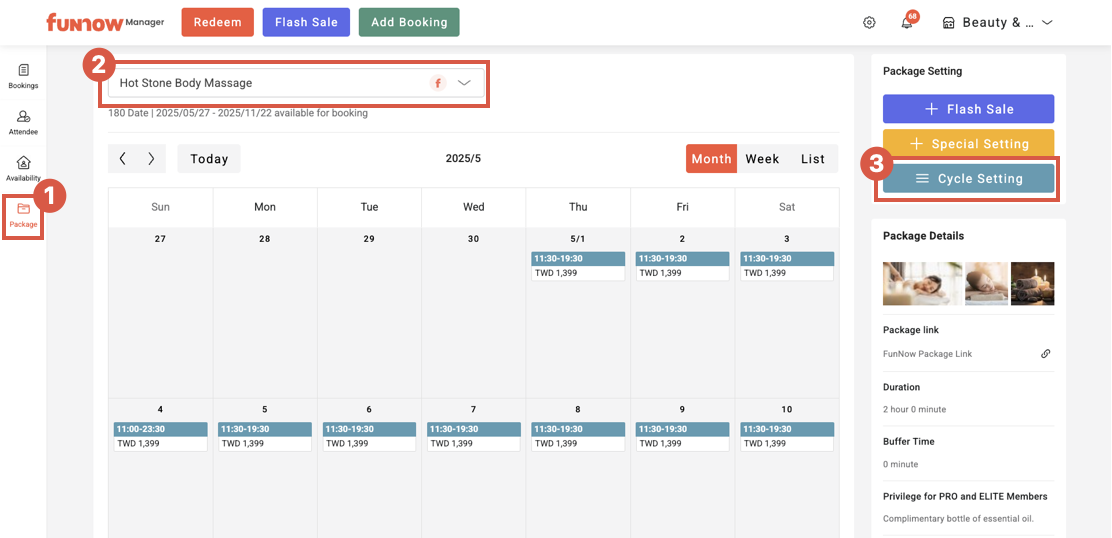
1. Click "Package list" at the top left of the "Package" page to select the package you want to adjust.
2. Click the “Cycle Setting” button to adjust the booking time slots and prices.
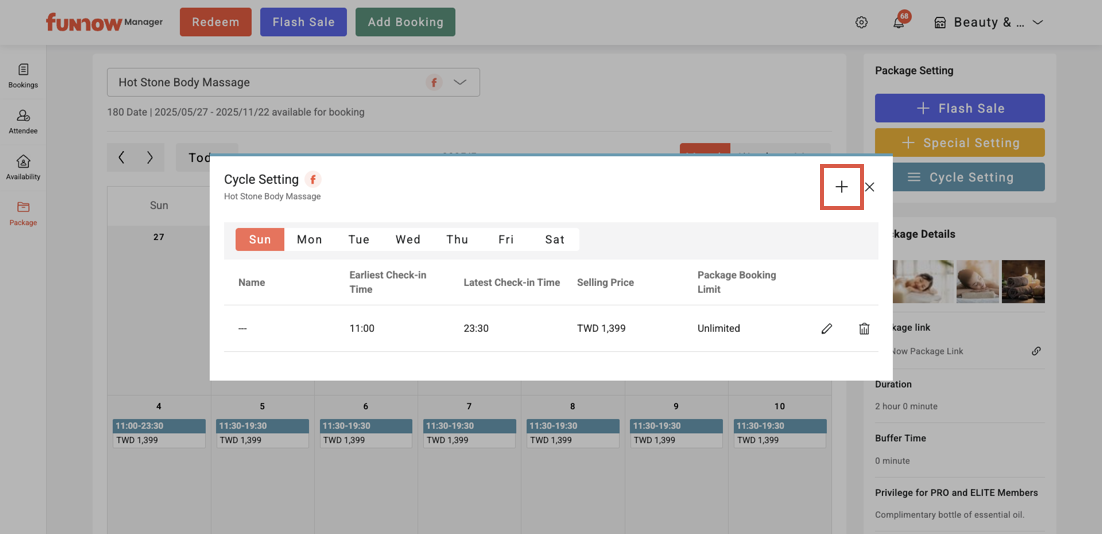
3. Click “+” to add a new time slot and set its price.
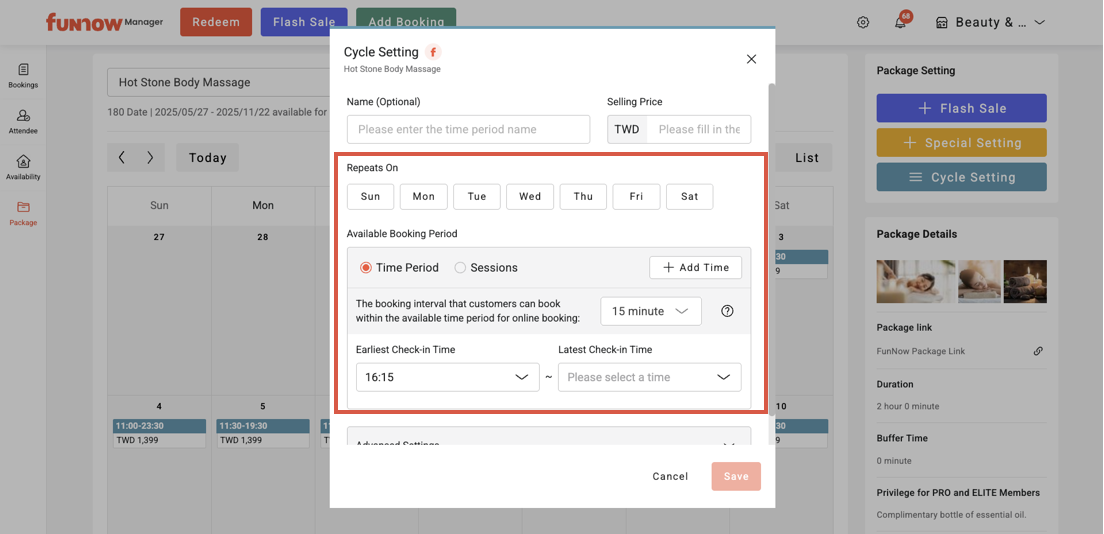
4. To set up all the necessary fields:
-
Name:(Optional) Name this cycle setting for easier management.
-
Selling Price: Set the selling price for this time slot.
To prevent customers from booking at the wrong price, please ensure the price is set correctly at this step.
-
Repeats On: Select the day you want the package to be available for booking. Once selected, the schedule will repeat on the same day of the week.
If your branch is closed on Mondays and the business hours and prices are the same from Tuesday to Sunday, simply select those days to set the price.
If the business hours and prices differ between weekdays and holidays, you’ll need to set them separately.
-
Set either the “Time Period” or “Sessions” in the “Available Booking Period” section.
-
Time Period
-
Add time: Add new time slots for customers to book.
If your business hours are 11:00–14:00 and 16:00–21:00, you can use Add Time to create multiple time slots within a day.
-
The booking interval that customers can book within the
available time period for online booking: The system
defaults to 15 minutes. You can change it to 30 or 60
minutes as needed.
If the available booking period is from 11:00 to 18:00,
15-minute interval: customers can book at 11:00, 11:15, 11:30, 11:45, and so on.
30-minute interval: customers can book at 11:00, 11:30, 12:00, 12:30, and so on.
60-minute interval: customers can book at 11:00, 12:00, 13:00, 14:00, and so on.
-
Set the Earliest and Latest Check-in Time. Customers can only book within this time range.
If your original available booking period is from 11:00 to 18:00, the Earliest Check-in Time will be 11:00, and the Latest Check-in Time will be 18:00.
-
Sessions
-
Add Time: Add new time slots for customers to book.
-
Booking Slots: Can be set in one-minute increments.
If the available booking times are 11:00, 14:30, 16:00, and 19:00, use Add Time to create four slots first, then set the times accordingly.
5. In Advanced Settings, you can set the Package Booking Limit for this period. This allows you to limit the number of package bookings that can be accepted for a specific time and price. If no limit is needed, the system will default to Unlimited.
6. Click "Save" to complete all your setting.
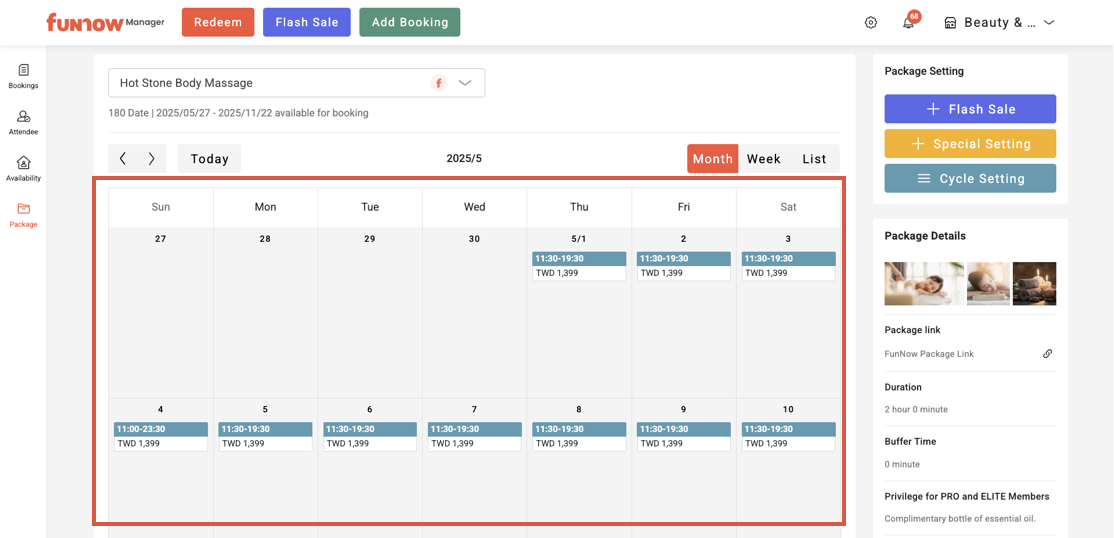
7. After saving, you can view all your settings on the Package Overview page.