When a customer doesn’t book through your MySite booking link, you can use the “Add Booking” feature to manually create reservations from other channels (e.g., phone or walk-in) in the FunNow Manager system. This allows you to manage all bookings in one place.
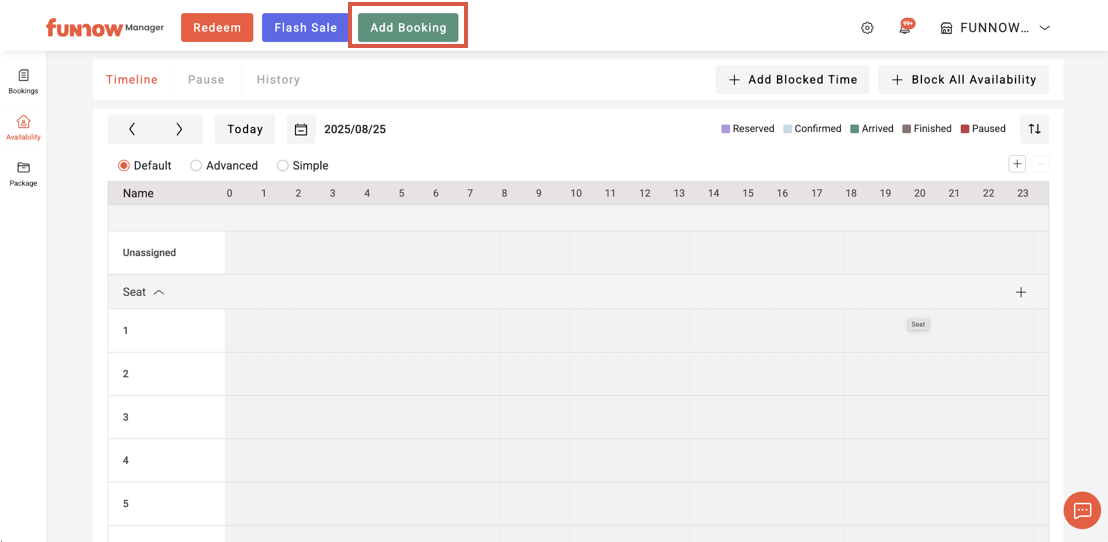
1. Click the “Add Booking” button at the top of the page.
2. After completing all customer booking details, click “Confirm” to save the booking.
Required fields include:
- Channel: Choose between Phone Booking or Walk-in Booking, depending on the actual situation.
- Package: Select the package the customer wishes to book. (Even if only seat reservations are offered, a package must still be selected.)
- Booking Time: The desired dining or usage time.
- Pax: Required only for restaurant reservations.
- Availability: The system will automatically assign the booking to an available slot based on the number of guests/packages and current availability. Merchants may also manually adjust according to on-site conditions.
- Merchant Notes (optional): Record any special requests or important notes regarding the customer.
- Customer Information: Phone number, booking name, title, and email address. Merchants may decide which fields are required.
- When adding a new booking, you can search for a customer using the "Phone Number" to auto-fill their details into the note field.
- The Country code field defaults to "All". Enter the phone number and press Enter or click the search icon to look up existing customer records. If a match is found, the system will automatically autofill the customer info into the fields.
- If no records are found for that phone number, you can click "Fill in Customer Information" to create a new profile for this booking.